Compress images in bulk, right in your browser
Reduce the size of your JPG, PNG, WebP, AVIF and GIF files in bulk, directly in your browser — by quality, target size in MB, or resolution. No file is ever uploaded to a server.
Open the tool for free →Which compression method should you use?
There are several ways to control the trade-off between file size and visual quality, and they are not interchangeable — each one answers a different constraint.
| Method | Reach for it when |
|---|---|
| Quality level | You are compressing photographs and want to judge the result by eye. On JPG and WebP, the 75–85 range usually removes most of the weight before artifacts become visible. |
| Percentage of the original | You are processing a batch whose files vary a lot in size and you want each one reduced proportionally rather than flattened to a single target. |
| Target size in MB or KB | Something imposes a hard ceiling: an upload limit on an administrative form, an email attachment cap, or a CMS that rejects anything above a set weight. |
| Number of colours | The image is flat artwork — a logo, an icon, a UI screenshot. Reducing the palette shrinks PNG and GIF files hard, but it degrades gradients and photographs badly. |
| Target resolution | The image is displayed far smaller than it actually is. This is frequently the largest single saving available, and it costs no visible quality at all. |
Compressing images for web performance
Images are usually the heaviest thing a web page downloads, which makes them the first place to look when load time is a problem. On most content pages the largest visible image is also the element Google measures as Largest Contentful Paint (LCP) — one of the Core Web Vitals — so its weight directly shapes how the page is scored.
Before touching the quality slider, check the dimensions. A 4000-pixel-wide photo shown in an 800-pixel-wide column carries roughly twenty-five times more pixel data than the layout can display, and no amount of compression recovers that waste. Resizing to the real display size, then compressing, is almost always the right order.
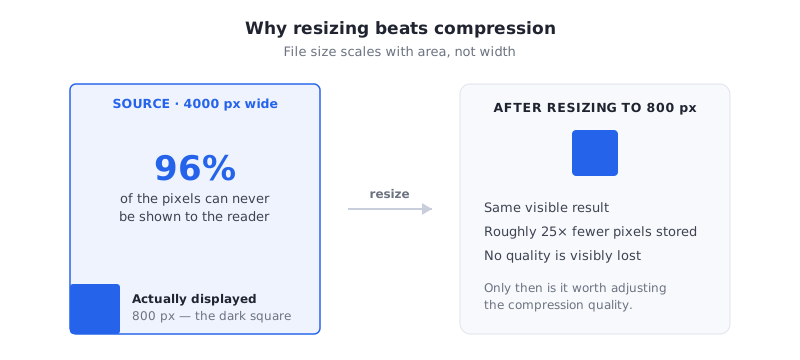
Compression is one layer among several. Serving a modern format, generating a handful of widths for responsive srcset images, deferring below-the-fold images with lazy loading and putting a CDN in front of your assets all compound with it. Lighter files simply mean less bandwidth to pay for and less to transfer on a slow mobile connection.
Pick the right format before you compress
Compressing a file that is in the wrong format to begin with limits how far you can get. A photograph stored as PNG, for instance, will stay large no matter how hard you squeeze it.
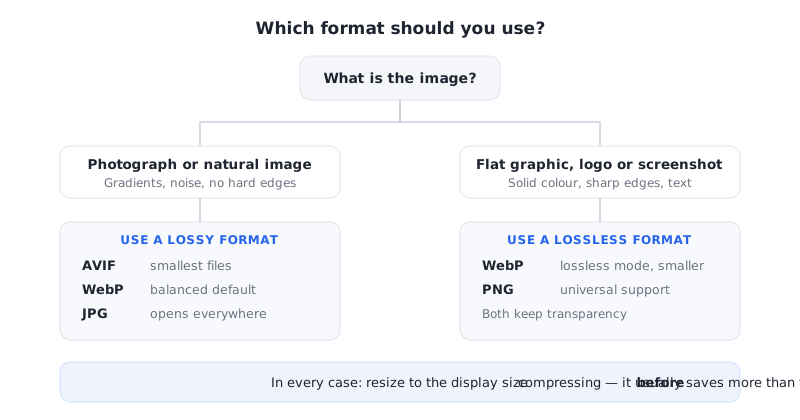
| Format | Compression | Transparency | Best suited to |
|---|---|---|---|
| JPG | Lossy | No | Photographs, and anywhere maximum compatibility matters |
| PNG | Lossless | Yes (alpha channel) | Logos, icons, flat graphics, screenshots with sharp text |
| WebP | Lossy or lossless | Yes | A general-purpose web replacement for both JPG and PNG |
| AVIF | Lossy or lossless | Yes | The smallest files, when you can keep a fallback for older browsers |
| GIF | Lossless, 256 colours | Yes (1-bit) | Short animations; for still images almost anything else is smaller |
Your files never leave your device
Compression runs entirely client-side. The codecs are compiled to WebAssembly and execute inside your own browser, so there is no upload step, no queue on a server and no copy of your images sitting in someone else's storage. You can watch this yourself: disconnect from the network after the page has loaded, and the tool keeps working.
This also settles the metadata question. Because every image is redrawn and re-encoded locally, the exported file does not carry the original EXIF block — camera model, capture timestamp and GPS coordinates included. For anyone handling client photographs or documents subject to GDPR, processing that never transmits the file at all is a materially different proposition from a service that uploads it and promises to delete it later.